

Content:
Battlefield 6 Best Settings Guide
Battlefield 6 takes the franchise to a new level with
advanced destruction systems, gritty next-gen maps, and one of the most complex settings menus ever seen in the series.
Between the overloaded submenus, odd aim mechanics, and dozens of visual toggles, it’s easy to feel overwhelmed—even for veteran players.
🔥 Why This Guide?
This optimized Battlefield 6 Beta settings guide is built for PC players who want the perfect balance between
performance, clarity, and control responsiveness. We’ll help you navigate every key setting—
from graphics and HUD to controller dead zones and motion options.
Whether you’re an aggressive rusher or a long-range marksman, the right settings can dramatically impact your gameplay.
🔧 What You’ll Learn
- Best FOV and Frame Rate Caps for fast-paced reaction time
- Input Tweaks for low latency and precise aim
- Dead Zones and Vertical Aim Ratio for tight control
- Graphics Settings that improve performance without losing clarity
- UI and HUD Customization for better visibility in chaos
Every setting we recommend is battle-tested and chosen to help you thrive during the Battlefield 6 Beta. Whether you’re looking for
maximum competitive performance or smoother gameplay on a mid-range rig, this guide has you covered.
📚 Explore More BF6 Guides
Best Battlefield 6 Graphics Settings for PC
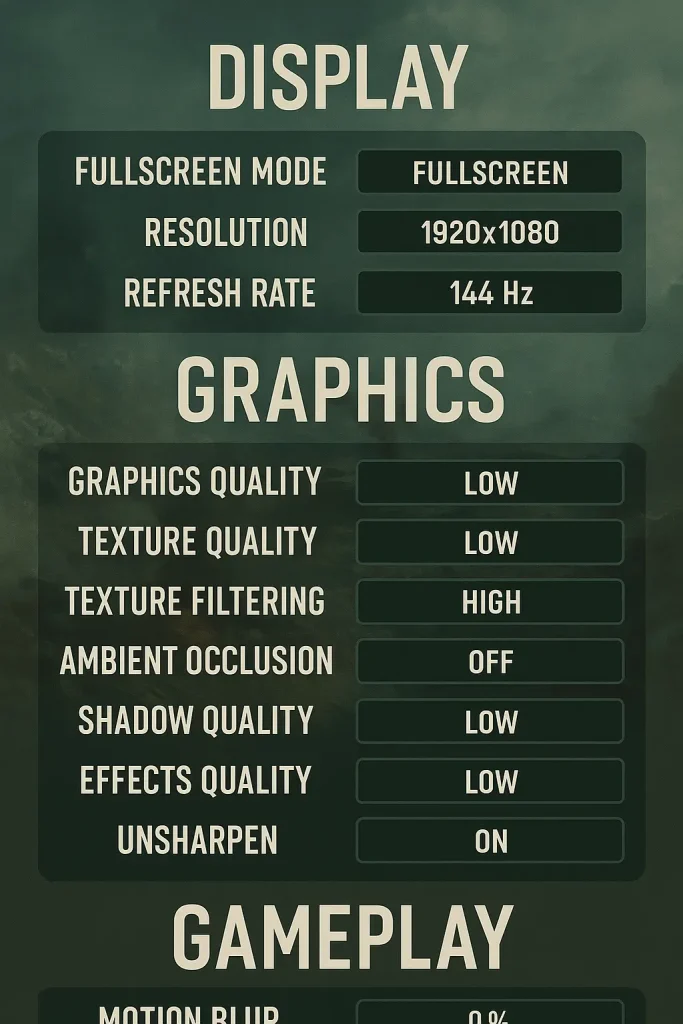
Battlefield 6 Beta includes multiple layers of visual customization across several menu tabs. To achieve the best combination of
performance and clarity, it’s important to configure each tab properly—especially if you’re on a high refresh rate monitor or mid-range system.
Below is a complete breakdown of recommended BF6 settings, organized by category to match the in-game menu.
🎮 General Graphics Settings
| Setting | Recommended Value |
|---|---|
| Performance Preset | Custom |
| Graphics Quality | Modify |
| Brightness | 50 |
| Sharpness | 50 |
Note: Brightness and sharpness should remain at 50 unless your monitor requires calibration. Setting Preset to Custom unlocks all advanced options.
📷 Camera Settings
| Setting | Recommended Value |
|---|---|
| Field of View (FOV) | 90 (adjust up to 100–110 as preferred) |
| Vehicle 3rd Person FOV | 79 |
| Weapon Field of View | Wide |
Tip: Weapon FOV on Wide minimizes on-screen clutter. FOV 90 is a balanced choice—higher FOV improves awareness but may slightly reduce aim precision.
🎞️ Graphics Tab – Camera Effects
| Setting | Recommended Value |
|---|---|
| World Motion Blur | Off |
| Weapon Motion Blur | Off |
| Camera Shake Amount | 20 (lowest) |
| Chromatic Aberration | Off |
| Vignette | Off |
| Film Grain | Off |
Recommendation: Turn off all cinematic effects for maximum visibility in combat.
Camera Shake 20 keeps the image stable during explosions.
🖥️ Display Tab – Screen Setup
| Setting | Recommended Value |
|---|---|
| Fullscreen Mode | Fullscreen (or Borderless for multitasking) |
| Fullscreen Device | Primary Monitor |
| Fullscreen Resolution | Native (e.g., 2560×1440) |
| Vertical Sync (V-Sync) | Off |
Why V-Sync Off? Turning off V-Sync reduces input lag and improves responsiveness—especially important for competitive play.
Use Fullscreen for better performance and lower latency unless you frequently switch to desktop.
Advanced Graphics Settings – Quality Options
Once Graphics Quality is set to Ultra and switched to Custom,
you gain access to all individual visual settings. These tweaks allow for both high-fidelity visuals and competitive performance.
| Setting | Recommended Value |
|---|---|
| Texture Quality | High |
| Texture Filtering | Ultra |
| Mesh Quality | Ultra |
| Terrain Quality | High |
| Undergrowth Quality | High (Low for FPS boost) |
| Effects Quality | High |
| Volumetric Quality | High |
| Lighting Quality | High |
| Local Light & Shadow | High |
| Sun Shadow Quality | Ultra |
| Shadow Filtering | PCSS (PCF for FPS) |
| Reflection Quality | High |
| Screen Space Reflections | Off |
| Post Process Quality | High |
| Screen Space AO & GI | GTAO High (or SSGI Low) |
| High Fidelity Objects | Ultra |
Tip: Keep Textures and Lighting on High to avoid blurry visuals.
Shadow Filtering on PCSS looks better but is heavier on the GPU—use PCF if you need more FPS.
🧩 Interface & HUD Settings Overview
Battlefield 6 allows for extensive HUD customization. However, many default values introduce visual noise. Below are adjustments that
improve clarity, reduce distractions, and maintain key feedback elements.
| Setting | Recommended Value | Effect |
|---|---|---|
| Soldier HUD Motion | Off | Removes motion blur during sprint/jump |
| Vehicle HUD Motion | Off | Stable display while driving |
| Show Vehicle Seat | On | Quick coordination and switching |
| Show Soldier Overlays | On | Keeps damage/heal indicators |
| Show Vehicle Overlays | On | Shows vehicle-specific effects |
| Show Outlines on Allies | On | Easier friend-or-foe recognition |
| SOVIS Filter | Optional | Personal preference only |
These changes won’t boost FPS, but they significantly improve readability during fast-paced combat.
🎯 Icon Intensity & HUD Icons
- Icon Intensity: 60 – Balanced visibility without clutter
- Enemy Icons: 100% – Always visible in any state
- Friendly/Squad Icons: Lower opacity during ADS or when blocked
Adjust icon opacities under HUD Icons > Modify for advanced customization.
Focus on highlighting threats while reducing distraction from teammates or objectives.
🔫 Crosshairs & Hit Indicators
Hit indicators and crosshair feedback are fully customizable. These color settings improve target feedback:
- Standard Hit: White
- Headshot: Orange
- Kill Shot: Red
- Armor Hit: Blue or Purple (not used in most modes)
You can also disable floating damage numbers under the same menu if they feel distracting.
Battlefield 6 Beta Troubleshooting
Even with all the best BF6 Beta settings applied, issues may still arise that aren’t directly caused by the game itself.
Battlefield 6 is still in active beta, and while it performs well for many, there are some serious bugs and technical hurdles that need attention.
This section focuses on crashes, freezes, missing assets, Secure Boot errors, and low FPS/stuttering — along with proven fixes for each issue.
🚫 Game Won’t Launch or Crashes on Splash Screen
This is one of the most common PC issues, usually caused by DirectX 12 errors or OS-level security conflicts.
Fixes:
- Verify or repair game files via Steam or EA App.
- Ensure your GPU supports DirectX 12 (minimum: RTX 2060 or RX 5600 XT).
- Disable Mandatory ASLR:
- Go to Windows Security > App & Browser Control > Exploit Protection > System Settings.
- Set “Force randomization for images (Mandatory ASLR)” to Off.
- Restart your PC.
- Redownload or verify if you paused/resumed the install multiple times.
🔐 Secure Boot Required
Battlefield 6 won’t launch if Secure Boot is disabled in your BIOS. It’s a requirement for EA’s Javelin Anticheat.
Fixes:
- Enter BIOS (usually by pressing DEL, F2, or F10 on startup).
- Find Secure Boot (under Security or Boot tab) and set it to Enabled.
- Save and exit BIOS.
- If unsure, check your motherboard model on the manufacturer’s website.
🐢 Low FPS or Stuttering
Even high-end systems can suffer from FPS drops in BF6 due to resource-heavy settings or background bottlenecks.
Fixes:
- Turn off the following effects:
- World & Weapon Motion Blur
- Film Grain, Vignette
- Chromatic Aberration, Depth of Field
- Cap FPS just below your monitor refresh rate (e.g. 117 for 120Hz).
- Turn off V-Sync to reduce input delay (especially for controller users).
- Reduce dynamic resolution scaling.
- Check VRAM usage: Ultra Textures require ~10GB VRAM.
- Use the in-game performance meter (right side of settings menu) to see which setting stresses your system most.
🔫 Invisible Weapons or Missing Assets
Some players report scope models or gun textures missing, breaking ADS or immersion.
Fixes:
- Avoid using scopes that clip into the camera.
- Swap optics or remove attachments temporarily.
- Wait for patches — these bugs are likely fixed by launch.
📡 HUD or UI Not Responding
Reports show disappearing UI elements or broken inputs (map close button, spotting, etc.).
Fixes:
- Manually rebind “Close Map” in control settings.
- Switch to a different gadget or loadout if interaction prompts are missing.
- Exit and re-enter vehicles if spotting/pinging stops working.
- If all else fails — restart the game.
Conclusion
The Battlefield 6 Beta delivers a solid glimpse of the full experience to come — but only if your system is configured properly.
Smart tweaks to your graphics settings, motion options, and
HUD layout can transform your performance from frustrating to flawless.
On PC, make sure Secure Boot is enabled and unnecessary post-processing effects are disabled.
These changes alone can drastically improve both FPS and responsiveness.
Lock in your ideal setup early using this guide, and you’ll be ready to dominate from day one — whether you’re playing aggressively,
holding angles, or pushing the objective.
🧠 Pro Tip: Save your configuration file once you’re happy with your setup — future patches may reset some options.
FAQ
Why won’t Battlefield 6 launch on my PC?
Secure Boot must be enabled in your BIOS. The game won’t launch without it.
How do I fix crashes or freezes on the splash screen?
Disable Mandatory ASLR, verify game files, and run the game as Administrator.
Why is my FPS in Battlefield 6 so low even on a good PC?
Turn off motion blur, post-processing, and chromatic effects. Set textures based on available VRAM.
When does the BF6 Beta start and end?
Early Access: August 7–8.
Open Beta: August 9–10 (Weekend 1) and August 14–17 (Weekend 2).
Do I need to have Secure Boot turned on in BIOS to play BF6?
Yes. Secure Boot is required on PC to support EA’s anti-cheat system and must be enabled.