

Content:
- Intro
- Step 1: Enable Performance Mode on PS5
- Step 2: Use a Wired Controller Connection
- Step 3: Optimize Display Settings
- Step 4: Prioritize Wired Internet
- Step 5: Tune In-Game Settings for Speed
- Step 6: Disable Visual Effects That Slow You Down
- Step 7: Adjust Graphics Mode
- Step 8: Fine-Tune Ultimate Team Settings
- Step 9: Test, Compare, and Adjust
Intro
The Hidden Reason Your Gameplay Feels Sluggish
If you’ve ever felt your passes come out a split-second late or your players react slower than they should, the problem often isn’t your skill — it’s your PS5 configuration.
In FC 26, even a few milliseconds of input delay can decide matches, especially in Rivals or FUT Champions. The good news: with the right console and in-game settings, you can make your gameplay feel faster, smoother, and more responsive than ever.
Let’s go step-by-step through the settings that top competitive players use to eliminate lag and sharpen their reaction time.

Step 1: Enable Performance Mode on PS5
Go toSettings → Save Data and Game/App Settings → Game Presets
and set Performance Mode as default.
- Performance Mode prioritizes frame rate and controller response.
- Resolution Mode focuses on graphics — which look prettier but feel heavier.
Choose Performance Mode. FC 26 is about milliseconds, not reflections on the grass.
Step 2: Use a Wired Controller Connection
One of the most common mistakes is relying on Bluetooth.
Go toSettings → Accessories → Controller → Communication Method
and select Use USB Cable.
Even if the controller is plugged in, PS5 defaults to Bluetooth unless you change this manually. Wired connection removes wireless interference and saves a few crucial milliseconds during gameplay.
Step 3: Optimize Display Settings
Now go toSettings → Screen and Video.
- Resolution: set it to 1080p.
FC 26 runs at 60 Hz; higher resolutions don’t improve performance. - Monitor vs TV: avoid large TVs. Big screens (55″ +) increase delay.
Instead, use a gaming monitor with 1 ms response time and 60 Hz refresh rate. - If you’re building a competitive setup, investing in a reliable monitor makes a bigger impact than upgrading your controller or chair. You can always boost your team later using FC 26 Coins once gameplay feels tight.
- VRR: Off — it increases button delay.
- 120 Hz Output: Off — FC 26 doesn’t support it.
- ALLM (Auto Low-Latency Mode): turn it Off, unless your TV specifically needs “Game Mode” enabled.
- HDR: Off. It adds noticeable delay.
- Deep Color Output: Off for the lowest possible response time.
Step 4: Prioritize Wired Internet
Just like the controller, your network connection should be wired.
Wi-Fi introduces extra ping and packet loss — every spike adds micro-delay to your passes and tackles. If there’s any way to plug directly into the router, do it. Wired is always the way to go.
Step 5: Tune In-Game Settings for Speed
After fixing the console, it’s time to adjust FC 26 itself.
Head toSettings → Game Settings.
Animation Start / Pass Receiver Lock
Activate Early lock.
The receiver arrow appears the moment the passing animation starts, letting you move your target earlier and react faster than opponents.
Game Type
Set to Competitive, not Authentic.
Competitive mode eliminates slower animations and keeps gameplay snappier.
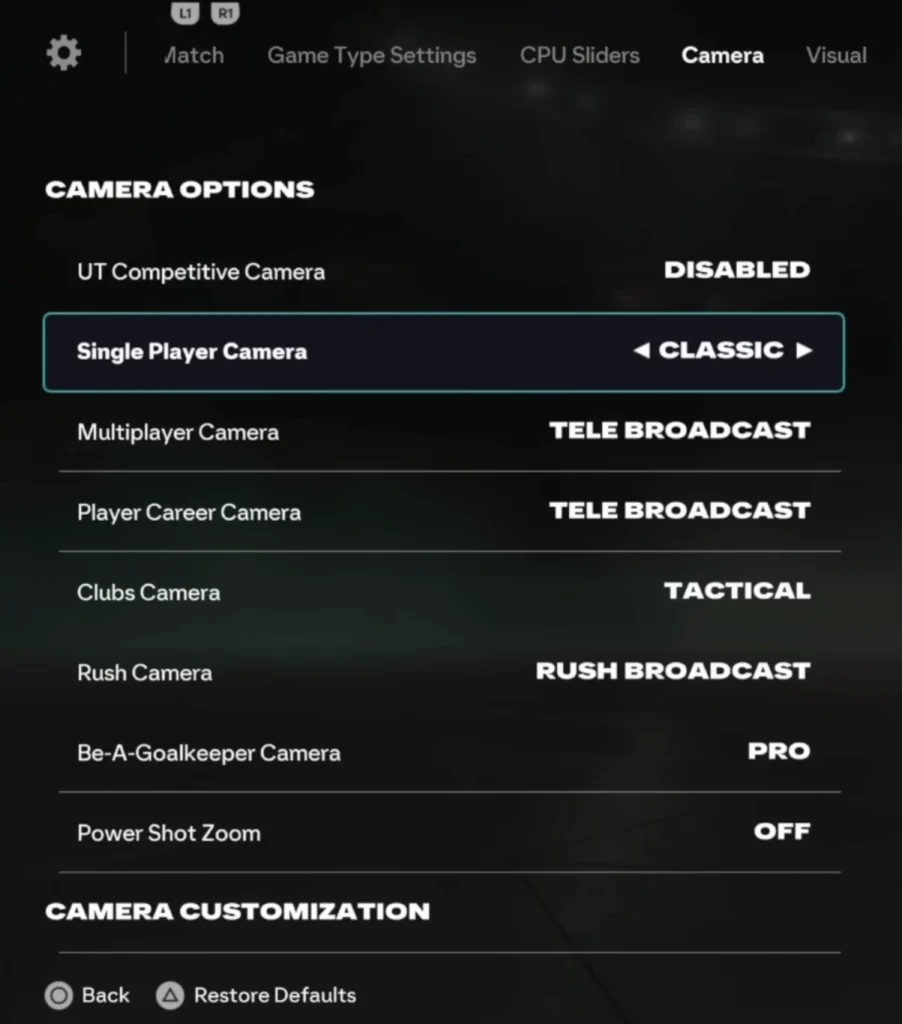
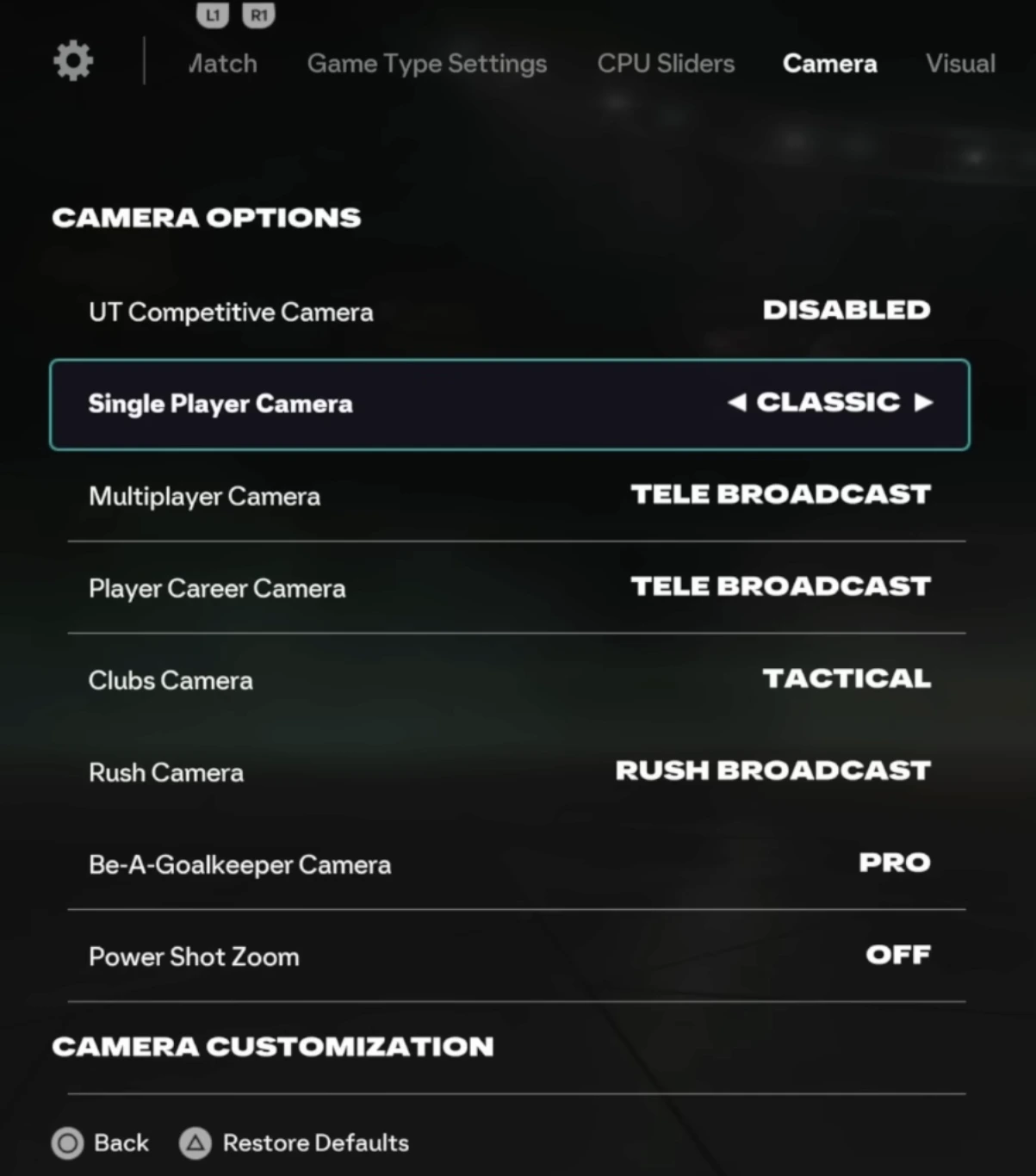
Camera Angle
Use Tele Broadcast.
It focuses only on the pitch and hides crowd rendering, lowering GPU load and button delay.
Adjust height (around 15–20) and zoom (0–5) until visibility feels natural.
Step 6: Disable Visual Effects That Slow You Down
Every unnecessary element on screen consumes rendering power, which slightly increases delay. Turn these off:
- Score clock dropdown
- Scrolling lineups
- Tactical chalkboard
- Tactical suggestions
- PlayStyle + notifications
- Player shadows
- Stadium shadows
The last two have the biggest impact. Turning off shadows alone can noticeably improve input response.
Step 7: Adjust Graphics Mode
Switch to Favor Resolution.
Despite the confusing name, this mode uses a lighter lighting model and avoids dynamic graphical effects during gameplay, which keeps frame pacing consistent.
When you’re ready to test how much smoother matches can feel with these adjustments, you can always push further in FC 26 Champions Finals to experience competitive intensity without technical disadvantages.
Step 8: Fine-Tune Ultimate Team Settings
Inside Ultimate Team, go toSettings → Matchmaking Settings.
- Approximate Location Matchmaking: set to Yes.
This keeps you connected to nearby servers for lower ping. - Cross-Play: enable it.
Surprisingly, activating cross-play opens additional connection ports, improving stability and speed.
If you prefer to avoid Xbox or PC opponents, simply back out when the pre-match screen shows another platform.
You’ll still get the faster response time benefit without actually playing those matches.
Step 9: Test, Compare, and Adjust
Play five matches with the new setup, then switch back briefly to see the difference.
Your player switching, passes, and tackles will instantly feel sharper. Button input now syncs naturally with on-screen movement — the way FC 26 was meant to be played.
If you’re unsure whether you’re getting the full benefit, try personalized analysis through FC 26 Coaching — professionals can spot timing errors, controller sensitivity issues, or camera habits you might miss yourself.
For a longer cooperative grind to feel the input difference in real-time matches, FC 26 Pro Clubs Leveling is a great environment to refine touch control and reaction speed alongside teammates.
Final Thoughts
These PS5 adjustments may seem small, but together they completely transform how responsive FC 26 feels.
Every pass connects faster, every tackle reacts quicker, and your entire game becomes more precise. Whether you’re pushing through Rivals, Drafts, or Champs, shaving off just a few milliseconds of delay is what separates average players from consistent winners.